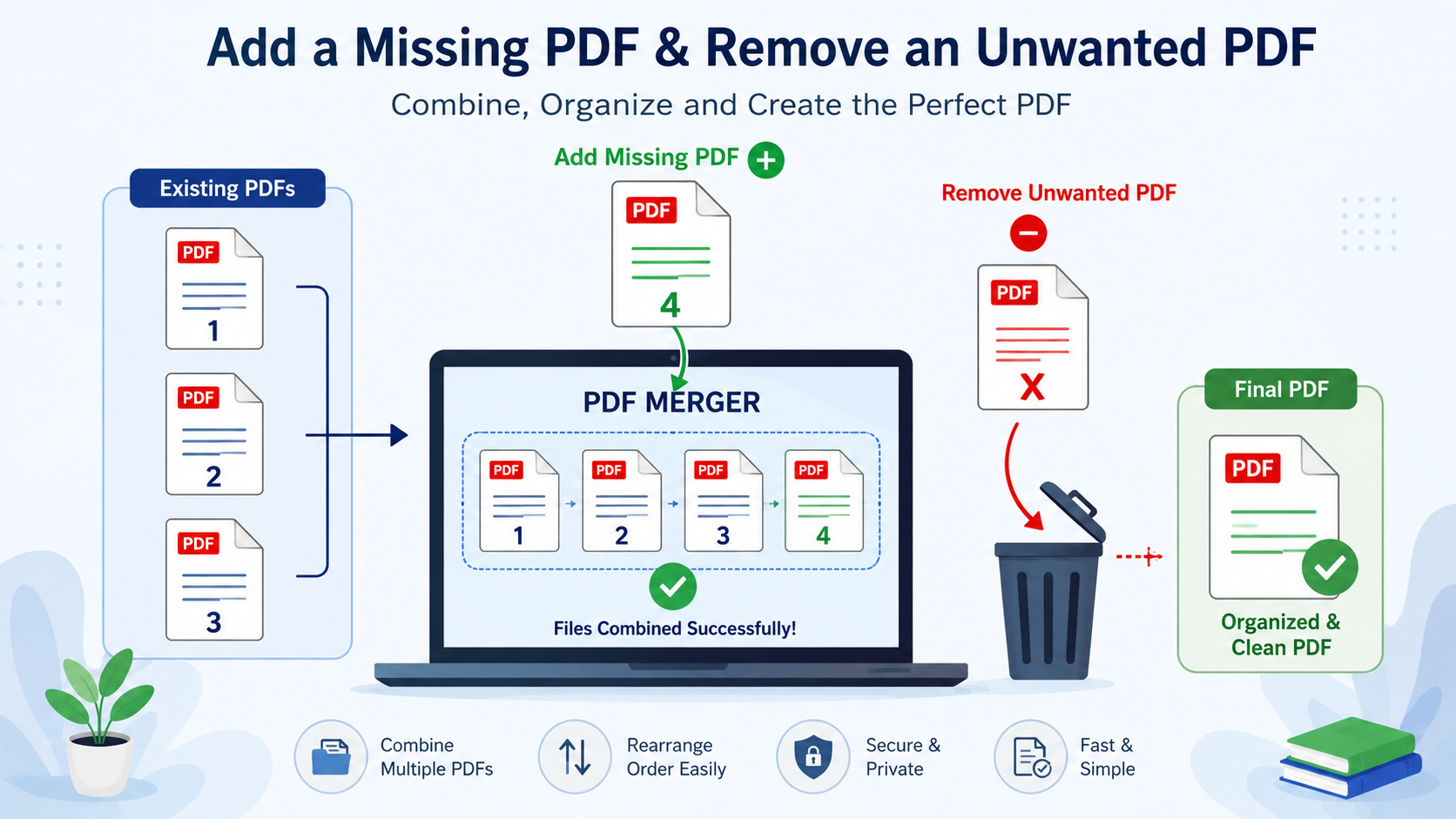
How to Add a Missing PDF to an Existing PDF or Remove an Unwanted PDF
Have you ever prepared a study document, question paper, notes file, or application document and then discovered that one PDF file was missing? In another situation, you may have combined several documents only to realize that one unnecessary page or PDF was included.
You do not always need to recreate the entire document. A practical approach is to combine the required PDF files in the correct order and remove the unwanted part before creating the final document.

This guide explains how to add a missing PDF to an existing PDF collection, how to remove unwanted pages or files, and how students, teachers, and exam aspirants can use the process when preparing digital study material.
What Does It Mean to Add a PDF to an Existing PDF?
When people say they want to add a PDF to an existing PDF, they generally mean combining two or more PDF documents into one file.
For example, suppose you already have a PDF containing 50 practice questions and later receive another PDF containing 20 additional questions. Instead of keeping two separate files, you can combine them into one document.
The same approach can be useful for:
- Adding a missing chapter to a set of study notes
- Combining question papers and answer keys
- Joining multiple mock test documents
- Combining application-related documents into one PDF
- Putting different sections of educational material into a single file
- Organizing scanned documents into a logical sequence
When Should You Remove an Unwanted PDF or Page?
Removing unnecessary content is useful when the final document contains something that should not be included.
For example, a teacher may have several question-paper PDFs but accidentally select the wrong version while preparing a combined file. Similarly, a student may combine notes from multiple sources and later decide that one document is no longer relevant.
Removing unnecessary content can help keep the final PDF easier to manage and share.
How to Add a Missing PDF to an Existing PDF
The basic process is straightforward: identify the files you need, arrange them in the desired order, combine them, and save the resulting document.
Step 1: Identify the Existing PDF
First, locate the PDF that already contains most of your required content. Open it briefly and confirm that it is the correct document.
This is particularly important when you have multiple versions of the same question paper or study material.
Step 2: Find the Missing PDF
Next, locate the PDF that was left out. Check its filename and contents before combining it with the existing document.
If the order of the material matters, decide where the missing document should appear. For example, a syllabus PDF may need to come before a question paper, while an answer key may be placed after the questions.
Step 3: Combine the PDF Files
Use a PDF combining tool to select the documents and arrange them in the required sequence.
For a simple browser-based workflow, you can use the PDF & Image Combiner to combine compatible PDF files into a single document.
Step 4: Check the Order
Before creating the final file, review the sequence of the selected documents. A technically correct merge can still produce a confusing document if the files are arranged incorrectly.
For educational material, a useful sequence might be:
- Syllabus or instructions
- Study material
- Question paper
- Answer key
- Additional explanations or references
Step 5: Save and Review the Final PDF
After combining the files, open the resulting PDF and check the beginning, middle, and end of the document. Confirm that the missing material is present and that no unwanted document was included.
How to Remove an Unwanted PDF from a Combined Document
If you have not created the final PDF yet, the easiest solution is usually to remove the unwanted file from the selection before combining the documents.
Remove the Unwanted File Before Combining
Suppose you have five PDFs:
- Mathematics Practice Set
- Reasoning Practice Set
- English Practice Set
- Old Answer Key
- General Knowledge Practice Set
If the old answer key is no longer required, simply exclude that file from the combination process. The remaining documents can then be combined into the final PDF.
What If the Unwanted Content Is Already Inside the PDF?
This situation is slightly different. If an unwanted page is already part of a combined PDF, you need a PDF editor or page-removal function that supports removing individual pages.
A PDF merger and a PDF page editor are related but not identical tools. A merger combines documents, while page-level editing requires functionality for selecting and deleting individual pages.
Therefore, first determine whether the unwanted item is a separate PDF file or a page that is already embedded in the final document.
Adding a Missing PDF Without Rebuilding Everything
You do not necessarily have to recreate all of your original files when a document is incomplete.
For example, imagine that you have already prepared three PDF files for an exam practice session:
- Mock Test 1
- Mock Test 2
- Mock Test 3
Later, you find that Mock Test 4 was missing. You can combine the required files again in the intended sequence instead of manually copying their contents into a new document.
This approach is especially convenient when the original PDFs are already formatted and you want to preserve their existing layout.
Practical Uses for Students and Teachers
Combining Mock Tests
Students preparing for competitive examinations often download practice papers separately. Combining several relevant PDFs can create a single practice pack that is easier to keep organized.
Adding a Missing Question Paper
A teacher or student may already have a collection of question papers but later receive another paper. The new file can be added to the collection when preparing a consolidated study document.
Combining Questions and Answer Keys
When question papers and their answer keys are stored separately, combining them can make revision more convenient. The question paper can be placed first, followed by the corresponding answer key.
Organizing Study Notes
Different chapters are often stored as separate PDFs. Combining related chapters into one document can make it easier to keep a complete subject-wise study file.
Preparing Documents for Sharing
If several related PDFs need to be shared with a class, teacher, institute, or colleague, combining them into one appropriately ordered document can reduce the number of separate files that need to be handled.
Important Things to Check Before Combining PDFs
Combining files is simple, but a few checks can prevent mistakes.
Check the File Names
Use meaningful filenames so that you can distinguish between different versions. Names such as SSC_GD_Mock_Test_01.pdf and SSC_GD_Mock_Test_02.pdf are easier to identify than generic names such as document1.pdf.
Check the Order
Decide the correct sequence before creating the final file. This matters when the documents form a logical progression.
Check for Duplicate Files
Before combining multiple PDFs, make sure that you have not selected the same document twice. Duplicate files can make the final document unnecessarily long and confusing.
Review the Final Output
Always open the resulting PDF after combining the documents. Check whether all expected sections are present and whether any unwanted file was accidentally included.
PDF Merger vs. PDF Page Removal
It is useful to distinguish between two common requirements:
| Requirement | Suitable operation |
|---|---|
| Add another PDF to an existing collection | Merge or combine PDFs |
| Combine several study documents | Merge PDFs |
| Exclude one complete PDF before combining | Remove it from the selected files |
| Delete one page already inside a PDF | Use a PDF page-removal/editing function |
| Rearrange pages inside a document | Use a PDF page organizer/editor |
This distinction can save time because merging documents does not automatically mean that individual pages inside an existing PDF can be edited.
Security and Privacy Considerations
PDF files can contain personal information, examination material, applications, certificates, or other sensitive documents. Before using an online PDF service, it is sensible to understand how the service handles uploaded files.
The PDF & Image Combiner page states that its tools run client-side. If you are working with sensitive documents, you should still review the service's current privacy information and make sure the tool's current behavior meets your requirements.
You should also avoid sharing the resulting PDF publicly when it contains personal information or restricted educational material.
Common Mistakes to Avoid
- Choosing the wrong version: Check the contents before combining similarly named PDFs.
- Using the wrong order: Arrange documents according to the intended reading sequence.
- Adding duplicates: Check the selected files before creating the final document.
- Confusing files with pages: Removing a complete PDF is different from deleting a page within a PDF.
- Skipping the final review: Always inspect the generated document before sharing it.
Frequently Asked Questions
Can I add a PDF to an existing PDF?
Yes. If your goal is to place the contents of one PDF after or before another PDF, you can combine the documents using a PDF merging tool.
How do I add a missing PDF to a collection of documents?
Select the existing PDFs together with the missing document, arrange them in the required order, and combine them into a new PDF.
Can I remove an unwanted PDF before merging?
Yes. If the unwanted document is a separate file, simply leave it out of the files selected for the final combination.
Can I remove one page from an existing PDF?
That requires a PDF page-editing or page-removal feature. A basic PDF merger is primarily intended for combining documents rather than editing individual pages.
Will merging PDFs change their original content?
PDF merging generally places the pages from the selected documents into one file. However, you should always review the resulting document because behavior can vary between tools and document types.
Is combining PDFs useful for exam preparation?
Yes. Students can combine mock tests, practice sets, notes, question papers, and answer keys into organized study documents, provided the files are arranged and reviewed carefully.
What should I check after merging PDF files?
Check the page order, expected sections, duplicate documents, missing files, and the final file before sharing or submitting it.
Conclusion
Adding a missing PDF does not have to mean starting a document from scratch. In many cases, the practical solution is to combine the required files in the correct order and leave out any complete PDF that is no longer needed.
For students and teachers, this can be useful when organizing mock tests, question papers, answer keys, chapters, and other study material. The key is to identify whether you need to combine complete PDF files or actually remove or rearrange individual pages within an existing document.
Once that distinction is clear, choosing the appropriate PDF operation becomes much easier and helps you create a cleaner final document with less manual work.
Suggested Internal Links for Mocktest.in
Where these resources exist on Mocktest.in, consider naturally linking this article to relevant pages such as:
- SSC mock tests
- Competitive exam practice tests
- Previous year question papers
- Exam syllabus and preparation guides
- Subject-wise practice tests
- Online mock test resources