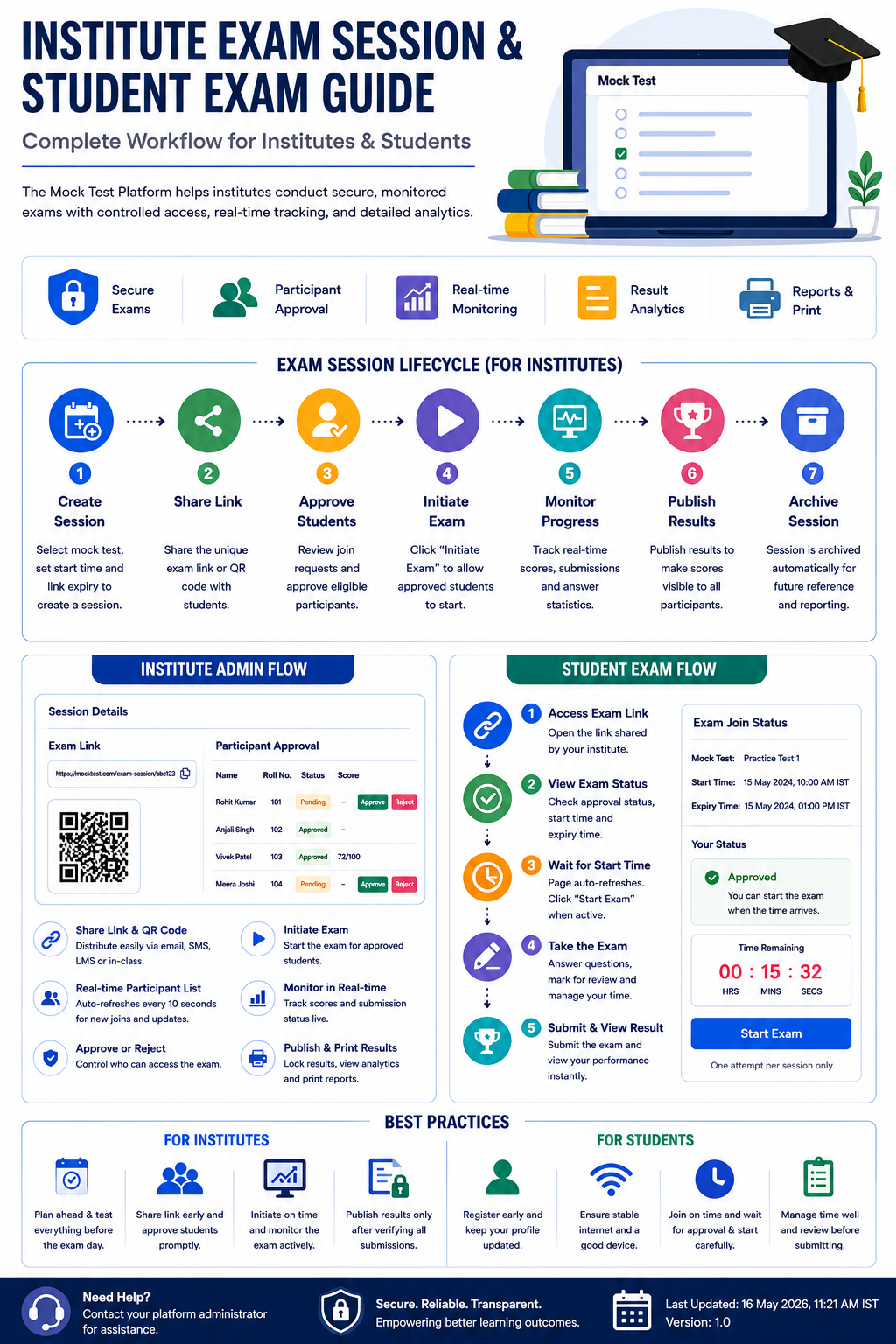
Getting Started as an Institute
Before initiating exam sessions, an institute must complete a three-stage onboarding process:
- Registration requires valid institutional details.
- Email verification confirms authenticity using OTP validation.
- Admin approval activates access to advanced features.
Once approved, the Institute Dashboard becomes available. It provides a centralized interface for managing exams, sessions, and student participation.
Dashboard Capabilities
The dashboard presents operational visibility through:
- Pending student approvals for active sessions
- Ongoing or scheduled exam sessions
- Recently created sessions for quick access
- Navigation shortcuts for creating and managing tests
Creating Exam Sessions
An exam session represents a scheduled instance of a mock test. Preparation must include:
- A defined exam structure with duration and instructions
- A fully configured mock test containing questions
- A published status to make the test usable
Session Creation Workflow
The process begins from the “Manage Sessions” section within the dashboard. After selecting “Create Session,” the system requires:
- Selection of a mock test
- Entry of a future start time
- Specification of a link expiry window
Accuracy at this stage is critical because session timing directly impacts accessibility and student participation.
Managing Session Participants
Once a session is created, all administrative control shifts to the Session Details page.
Exam Access Distribution
Each session generates a unique access link supported by:
- Direct URL sharing
- Clipboard copy functionality
- QR code generation for mobile access
Institutes can distribute this link via email, messaging platforms, or LMS systems. Access remains valid only until the defined expiry time.
Participant Monitoring System
As students join, their details populate a live approval list showing:
- Student identity information
- Join timestamps
- Approval status
- Performance metrics after submission
The system refreshes automatically at short intervals, eliminating the need for manual updates.
Approval Control
Institutes retain full authority over participation:
- Approval grants exam access
- Rejection blocks entry
Decisions can be made before or during the exam window, allowing flexibility in access control.
Session Lifecycle Explained
The exam session progresses through a clearly defined lifecycle:
1. Session Creation
The system prepares the session environment while preventing early exam access.
2. Link Distribution
Students receive access and begin joining the session.
3. Participant Approval
Institutes validate and authorize eligible candidates.
4. Exam Initiation
The administrator triggers the exam, enabling approved students to begin.
5. Active Monitoring
Real-time updates display student activity, scores, and submission status.
6. Result Publication
Final results become visible and permanently locked after publishing.
7. Session Archiving
Completed sessions remain available for future reference and reporting.
Student Exam Participation Process
Entry Requirements
Students must complete account registration and obtain the session link from their institute.
Step-by-Step Student Flow
Accessing the Exam Link
The student opens the provided session URL, leading to a status page.
Status Verification
The system displays approval status, exam timing, and access validity.
Waiting Phase
If approval is pending or the exam has not started, the system updates automatically.
Exam Start
After initiation, the “Start Exam” option becomes active, and the timer begins.
Exam Interface Features
- Question navigation
- Time tracking
- Review marking functionality
- Progress indicators
Submission Methods
- Manual submission by the student
- Automatic submission upon time expiry
Attempt Limitation
Each session allows only one attempt per student. Re-entry after submission is restricted to maintain exam integrity.
Results and Analytics
Institute Perspective
The system displays detailed performance data, including:
- Total score
- Correct, incorrect, and unanswered counts
- Submission timestamps
A print-friendly report option supports documentation and offline record keeping.
Student Perspective
Students receive immediate performance insights after submission. Final validation occurs once results are officially published.
Best Practices for Smooth Exam Execution
For Institutes
- Preparation should begin well before the scheduled exam date
- Communication must include clear instructions and timing details
- Participant approvals should be handled promptly
- Exam initiation should occur slightly ahead of the start time
- Monitoring should continue throughout the session
- Result publication requires careful verification
For Students
- Early registration prevents last-minute issues
- Technical readiness ensures uninterrupted participation
- Timely login avoids missing approval or start windows
- Careful time management improves performance
- Post-exam review supports learning improvement
Troubleshooting Common Issues
Access Problems
Expired links or missing approvals are common causes. Contacting the institute resolves most cases.
Pending Approval Status
Students may need to wait briefly or confirm with administrators.
Missing Scores
Results remain hidden until the exam is initiated and officially published.
Link Expiry
Rejoining requires a new session or extended access window.
Key Feature Highlights
Institute Capabilities
- Session creation and scheduling
- Controlled participant approval
- Real-time monitoring
- Result publication and reporting
Student Capabilities
- Simple link-based access
- Status tracking
- Timed exam interface
- Instant performance feedback
Conclusion
The Mock Test Platform provides a structured environment for conducting secure and efficient online exams. Institutes gain complete administrative control, while students benefit from a smooth and transparent exam experience.
Proper use of session management, participant approval, and result publishing ensures reliability and scalability for any educational institution.